Connecting to ServiceX
You need a ServiceX endpoint where transformation is happening and a `client library <client-installation_>`_ to submit a transformation request.
Selecting an ServiceX endpoint
ServiceX is a hosted service. Each ServiceX instance is deployed at the server and dedicated to a specific experiment. Depending on which experiment you work in, there are different instances you can connect to. Some can be connected to from the outside world, while others are accessible only from a Jupyter notebook running inside the analysis facility.
Collaboration |
Name |
URL |
|---|---|---|
ATLAS |
Chicago Analysis Facility |
|
CMS |
Coffea-Casa Nebraska |
|
CMS |
FNAL Elastic Analysis Facility |
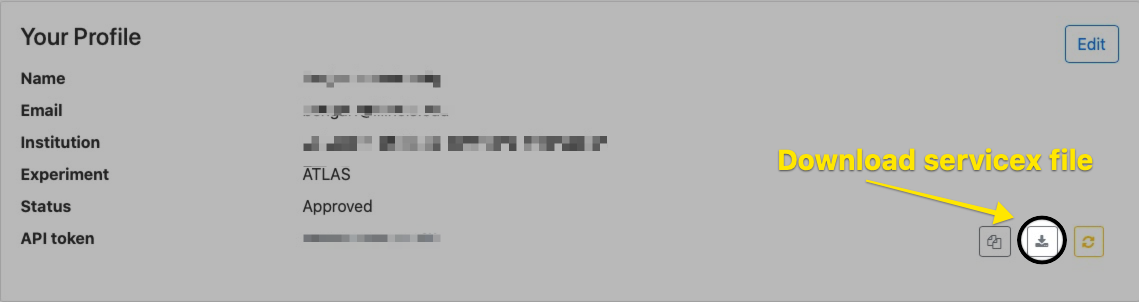
For ServiceX endpoints that can be connected from the outside, e.g. ATLAS Chicago Analysis Facility, you need to follow steps below to download a ServiceX access file.
Click on the Sign-in button in the upper right hand corner. You will be asked to authenticate via GlobusAuth and complete a registration form. Once this form is submitted, it will be reviewed by SSL staff. You will receive an email upon approval.
At this time you may return to the ServiceX page. Click on your name in the
upper right hand corner and then select Profile tab. Click on the download
button to have a servicex.yaml file generated with your access token and
downloaded to your computer.
ServiceX Client Installation
ServiceX client Python package is a python library for users to communicate with ServiceX backend (or server) to make transformation requests and handling of outputs.
Prerequisites
Python 3.9+
Access to ServiceX endpoint
Installation
The ServiceX client library can be installed either with pip
python -m pip install servicex
or with conda
conda install --channel conda-forge servicex
Testing
Navigate to a directory in which you want to begin a ServiceX project and execute:
After completing the instructions, you can execute one of the ServiceX First Examples.